The challenges face by
Web Graphic designers today:
- The limitation of Graphic
file formats: GIF, JPG, and PNG
- Palette (list of color
definitions) Optimization requirement for monitors and cross platform viewing
conformity
- The need for creating
the smallest graphics possible in the light of limited bandwidth available
on the Internet
(We would probably not have to worry about this a year from now when bandwidth
is no longer a problem with the fast growing use of T1, DSL and Cable modems.
But bear in mind about the WWW is world wide, other countries around the
world may not have wide bandwith)
Bit Depth (pixel depth
or bit resolution)
A bit is the smallest
unit of information that a computer understands. A single bit can store 2
separate values of 0 or 1. The number of bits store colors to be used in graphic
display on the computer.
Hue (H) - measurement
of the color's position on the color wheel.
Saturation (S) - measurement
of how pure a color is. Less saturated=gray
Brightness (B) - brightness
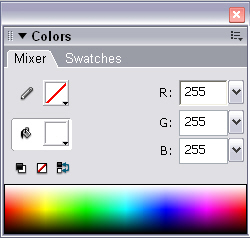
RGB works with HSB. There
are 256 values between 0 and 255.
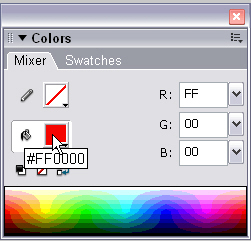
Color Measurements Hexadecimal,
or base 16 = notation that specifies colors for the web. (Computers think
of numbers in chunk of two 2 to the power of 4)
Web
export formats in Fireworks
GIF,
JPEG, and PNG are graphic file formats that are common in web development
because they are highly compressible, making for faster transfer across the
Internet. However, a graphic’s visual integrity can vary from one format
to another, depending upon each format’s method of compression. Therefore,
base your choice of file format upon the design and use of your graphic.
GIF
Graphics
Interchange Format, or GIF, is the most popular web graphic format. Although
it can contain only 256 colors, GIF offers good, lossless image compression.
Also, GIFs can contain a transparent area and multiple frames for animation.
Compression
-
Lossless
compression means that no image quality is lost when an image is compressed.
A GIF compresses by scanning horizontally across a row of pixels, finding
solid areas of color, and then abbreviating identical areas of pixels
in the file. Therefore, images with repetitive areas of solid color compress
best when saved as GIFs. A GIF is usually ideal for cartoon-like graphics,
logos, graphics with transparent areas, or animations. Note:
Dithering or anti-aliasing GIF images produces larger files.
JPEG
JPEG
is an alternative to GIF developed by the Joint Photographic Experts Group
specifically for photographic images. JPEG supports millions of colors (24-bit).
Compression
-
JPEG
is a lossy format, which means that some image data is discarded when
it is compressed, reducing the quality of the final file. However, image
data can often be discarded with little or no noticeable difference in
quality. When exporting a JPEG, use the Quality pop-up slider in the Export
Preview to determine how much quality is lost when compressing the file.
Use a high
percentage setting to maintain image quality but compress less, producing
larger files. Use
a low percentage setting to yield a small file, but produce a lower-quality
image.
Use the Export Preview to test and compare the appearance and estimated
file size with different Quality settings for an exported JPEG.
Check either Optimized or Progressive to export the JPEG using optimized
compression tables that can reduce file size.
Smoothing
Use
smoothing to help lower the file size of JPEGs. Smoothing blurs hard edges,
which do not compress well in JPEGs. To use smoothing, select a level
from the Smoothing pop-up in the Export Preview. Higher numbers produce
more blurring in the exported JPEG, typically creating smaller files.
Sharpening
color edges
Check
Sharpen Color Edges to help preserve fine edges between two colors. Use
Sharpen Color Edges when exporting JPEGs with text or hard color transitions
to preserve the sharpness of these areas
Progressive
Check
Progressive in the Export Preview to export a progressive JPEG. Progressive
JPEGs, like interlaced GIFs, display at low resolution and then increase
in quality as they continue to download.
The
JPEG format is best for scanned photographs, images using textures, images
with gradient color transitions, or any images that require more than
256 colors.
Note:
Many image editing applications cannot open progressive JPEGs.
PNG
The Portable Network
Graphic, or PNG, is the most versatile of the web graphic formats. However,
not all web browsers can take full advantage of PNG characteristics. A
PNG supports up to 32-bit color, can contain transparency or an alpha
channel, and can be progressive.
| |
GIF |
JPEG |
PNG |
|
Color depth |
8-bit
maximum |
Up
to 24-bit |
Up
to 32-bit |
|
Compression |
Lossless;
compresses solid areas of color |
Lossy;
compresses subtle color transitions |
Lossless |
|
Transparency support |
Yes |
No |
Yes |
| Advantages |
Lossless
compression Transparency |
Ability to control quality loss in compression
Excellent compression of photographic images |
Lossless compression
Alpha transparency
High color support |
|
Disadvantages |
Maximum of 256 colors
Does not compress gradient colors well |
No transparency
Loss of quality when compressed |
Not
completely supported by common browsers without using plug-ins |
|
Typical
Uses |
Cartoon images
Logos
Animated banners |
Scanned photographs
Images with complex textures
Images with complex gradient colors |
Images with high numbers of colors
Complex, live transparency |